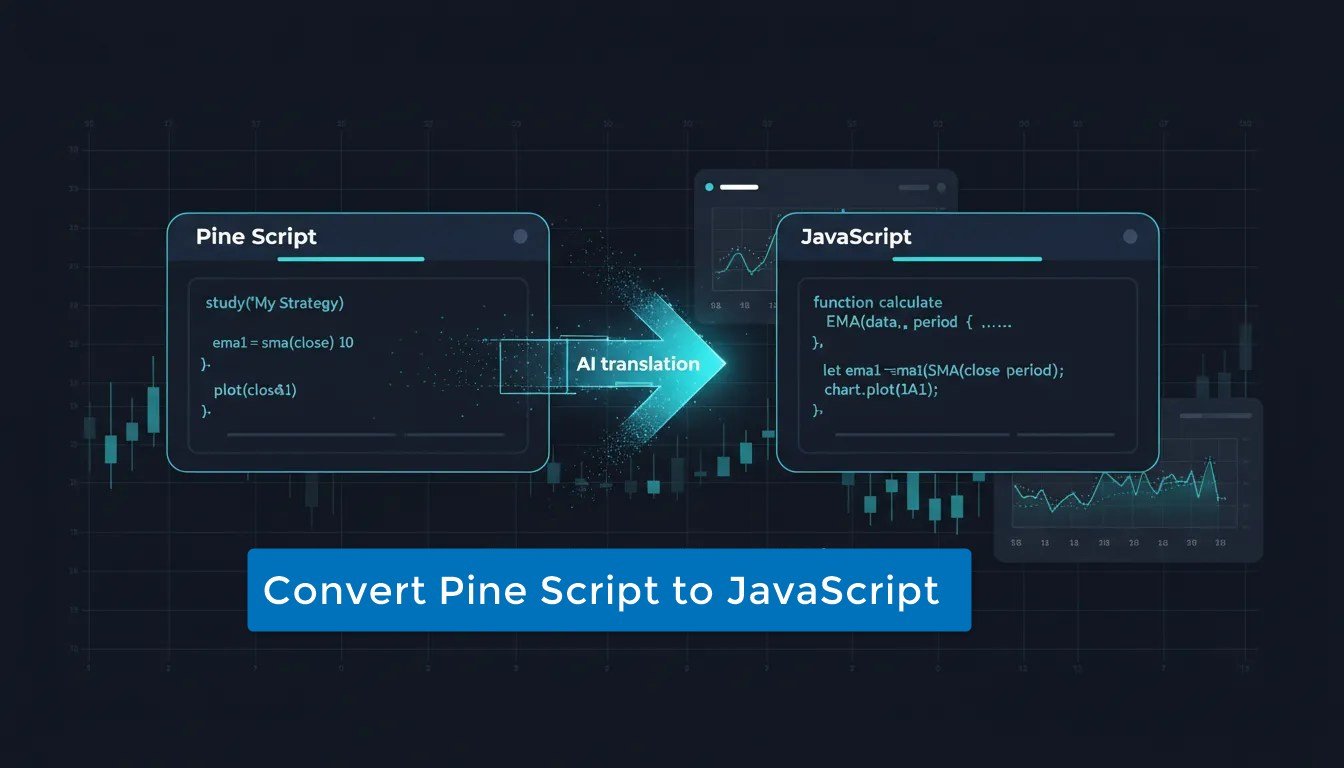
Learn how to convert Pine Script to JavaScript, instantly with AI. No coding required.
If you have ever wanted to bring a TradingView Pine Script indicator into TrendSpider, the good news is the process is now much simpler. There is no need to do a manual rewrite from scratch.
TrendSpider’s AI can help translate Pine Script into a JavaScript-based TrendSpider indicator. That means less time wasted with checking syntax and more time focusing on the logic behind the indicator you actually want to use.
This is especially useful for traders who already have a library of Pine Script tools, and want to adapt them for use inside TrendSpider’s charting platform.
Quick Overview of Converting Pine Script to JavaScript
Instead of manually rebuilding an indicator line by line, you can paste Pine Script code into TrendSpider’s custom indicator editor, and use their AI to translate that code into JavaScript for the TrendSpider platform.
Pine Script and JavaScript are different languages, and even when the underlying indicator logic is simple, converting it by hand can take time.
TrendSpider’s AI helps bridge that gap. At a practical level, this means:
- You start with existing Pine Script code.
- You paste it into the custom indicator workflow.
- The AI generates a JavaScript version tailored for TrendSpider indicators.
- You review, refine, and save the output.
This workflow can dramatically reduce the barrier to bringing over custom logic from another platform.
Step 1: Copy The Tradingview Pine Script Code
Firstly, copy the Pine Script code you want to transfer.
As Tradingview is constantly updated, refer to their latest docs if needed.
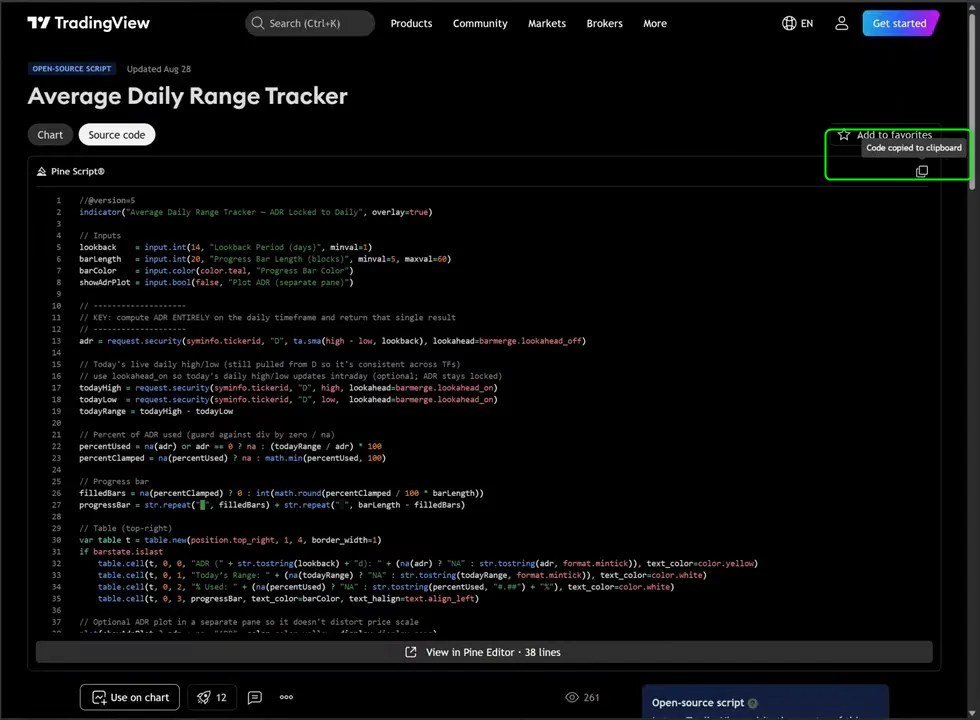
Before you copy, make sure the Pine Script you are using is clean and complete.
In general, that means:
- The code should represent the indicator you actually want to translate.
- Any experimental or unused sections should be removed if possible.
- The script should be focused on indicator logic rather than unrelated extras.
Even with AI assistance, cleaner input usually leads to cleaner output.
Step 2: Open the Custom Indicator Editor in TrendSpider
Select TrendSpider’s ‘Custom Indicator Editor’, to begin the process.
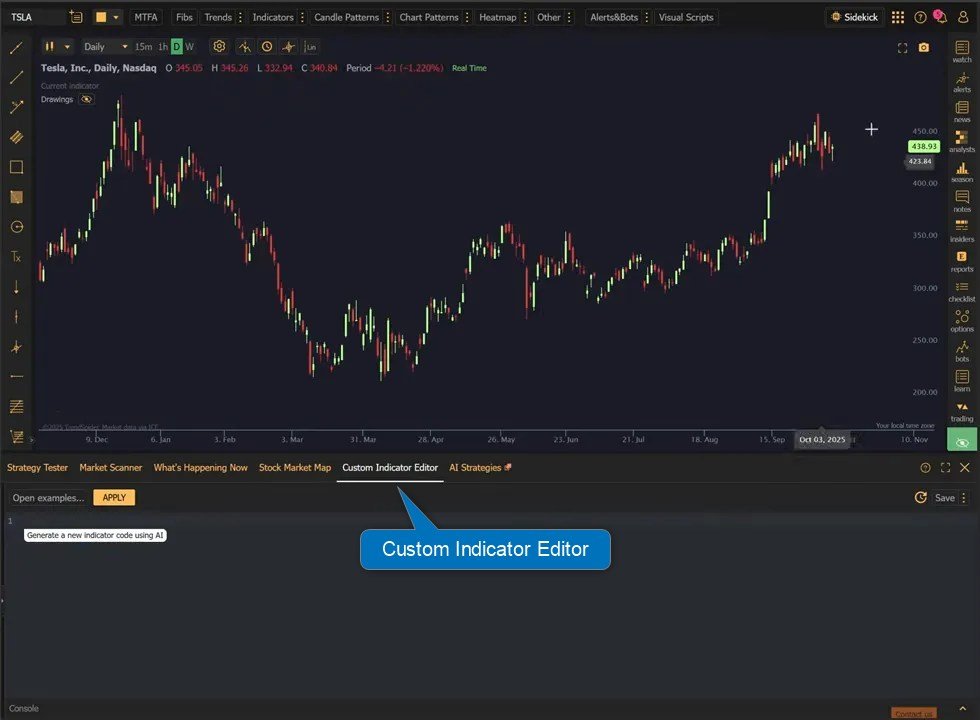
Step 3: Paste Your Pine Script Code
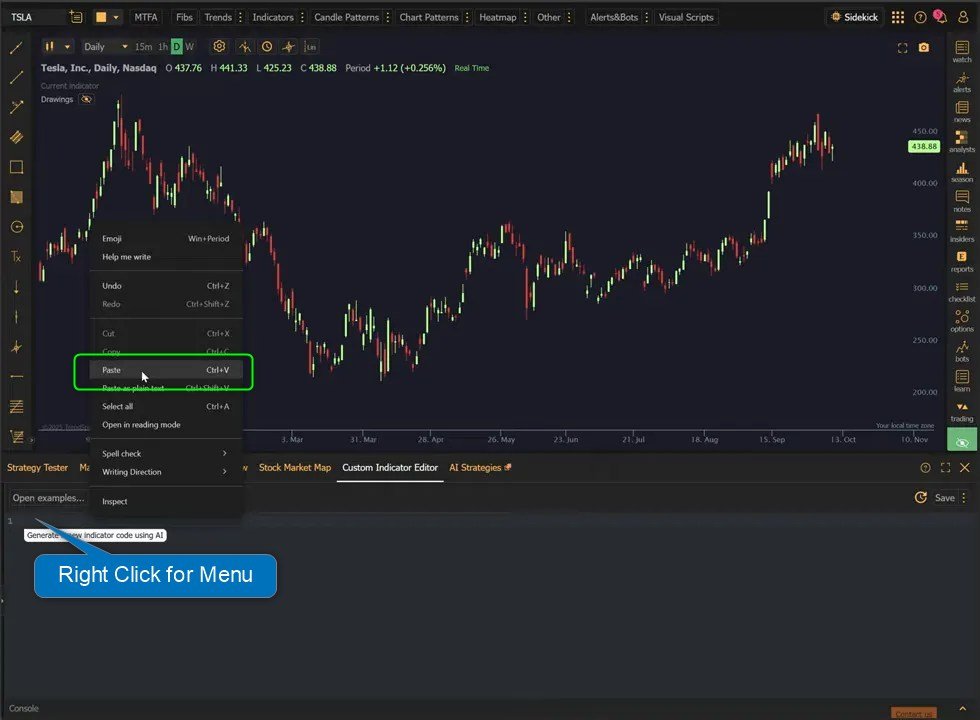
Once you are in the ‘custom indicator editor’, right click on the first line to bring up the menu options.
Select ‘Paste’ and paste the Pine Script directly into the editor interface.
Once the pinescript is pasted, the code should populate the editor panel as below.
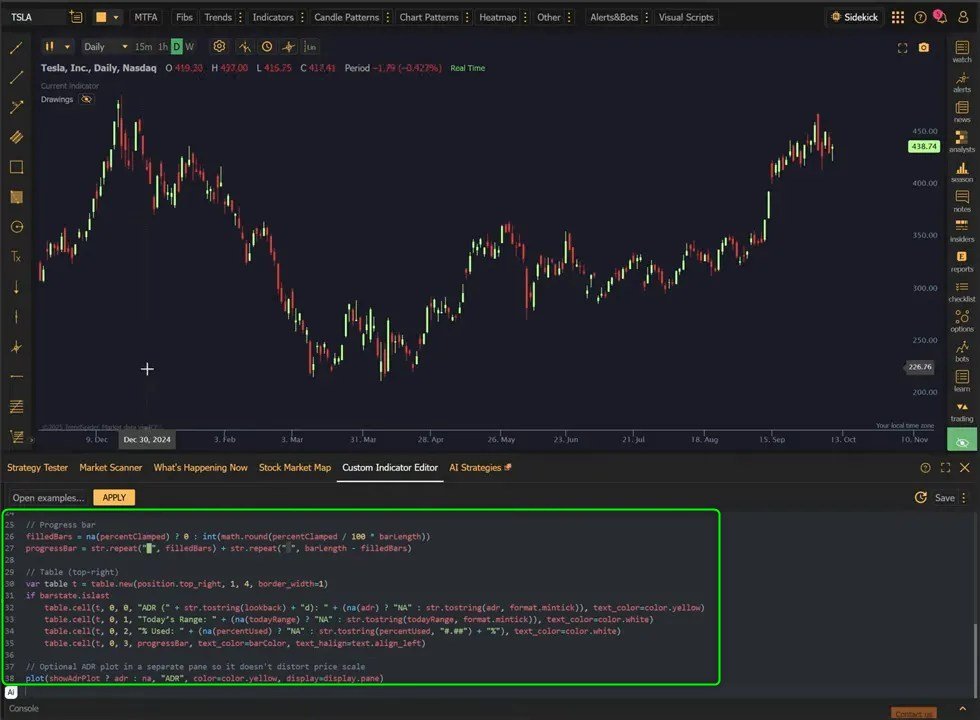
You do not need to manually reinterpret every function or rewrite every conditional statement before starting.
If you have worked with custom scripts before, you already know how much time can be lost in repetitive conversion work.
We are going to let the AI handle the translation for you, in the next step.
Step 4: Use TrendSpider’s AI to Translate Pine Script Into JavaScript
After pasting the Pine Script, we are going to use TrendSpider’s AI to translate it into a JavaScript TrendSpider indicator.
Click on the AI icon shown in the image below to open the ‘AI prompt panel’.
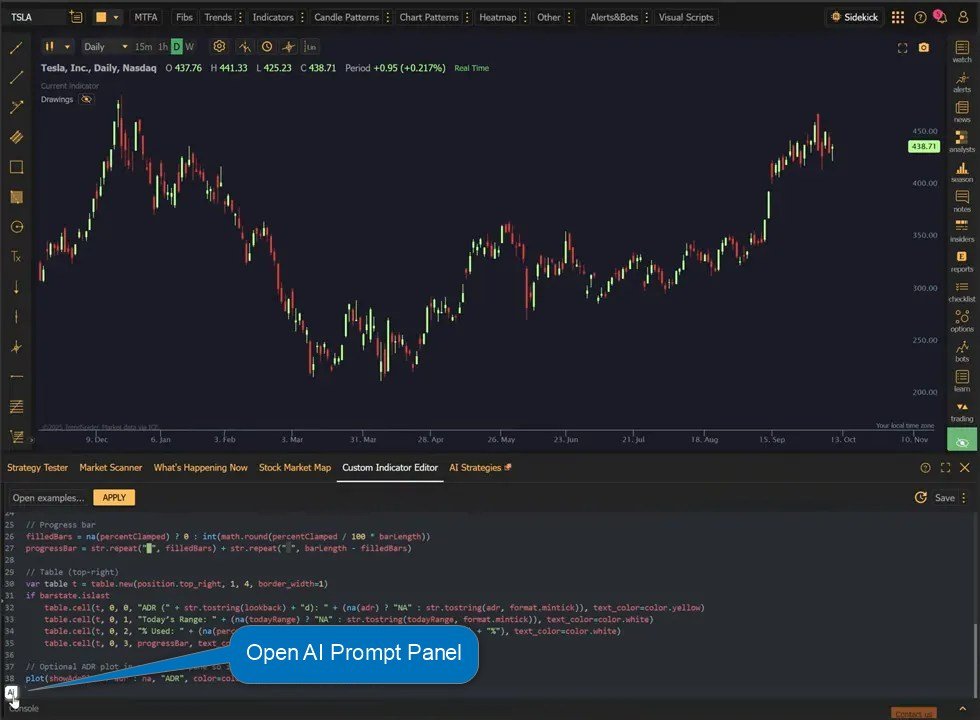
the ‘AI prompt panel’ is shown below.
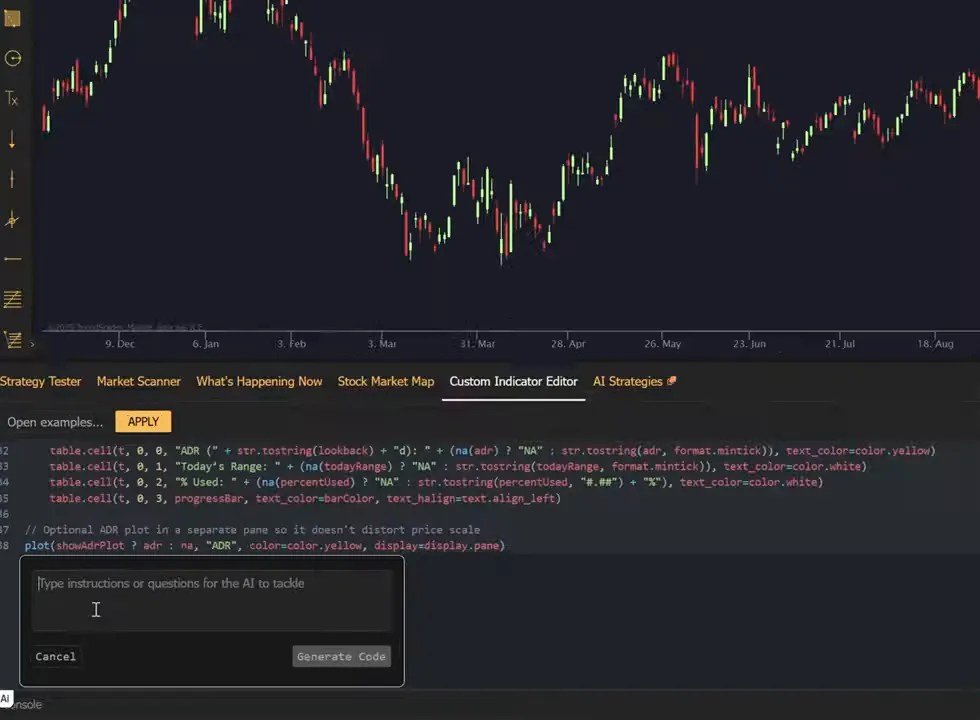
In the panel, type the prompt “Convert from pinescript to javascript“.
Then click ‘Generate Code’.
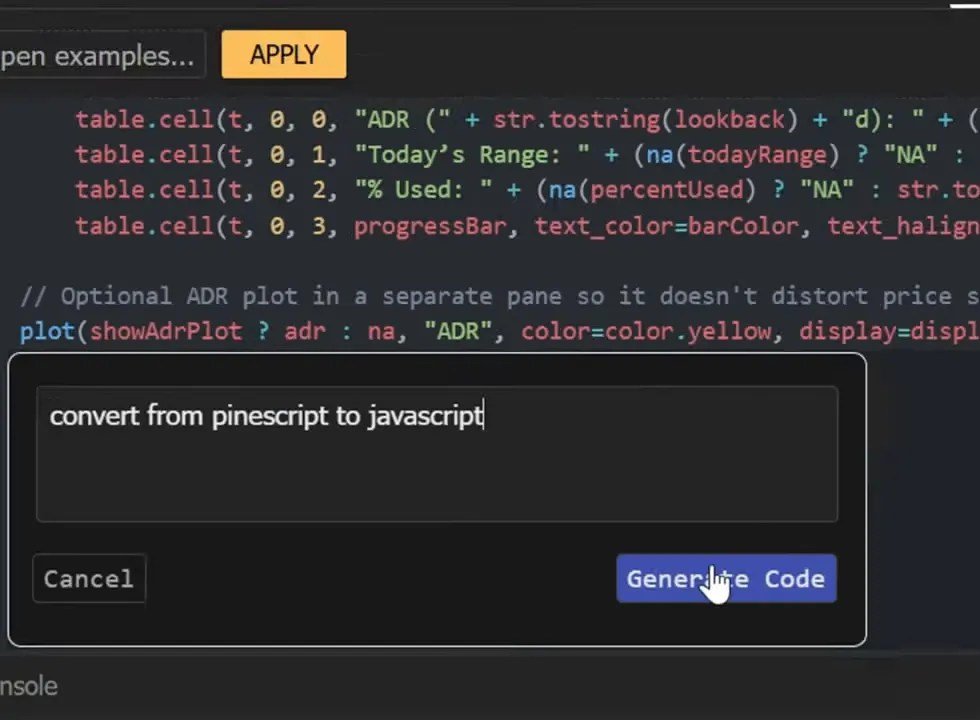
When the AI does the conversion, you are getting a version aimed at TrendSpider’s custom indicator framework, which can help make the script more usable than a raw, literal rewrite done without platform awareness.
Some common reasons this matters include:
- Function mapping: Pine Script functions may not have one-to-one equivalents.
- Plotting behavior: The way an indicator is displayed can differ across platforms.
- Inputs and parameters: User-defined settings often need to be adapted.
- Series calculations: Historical references and rolling values may be handled differently.
The next step is to make sure everything’s working as expected.
Step 5: Review the JavaScript Output Carefully
Even when AI does the heavy lifting, review still matters.
The best way to think about AI translation is as a fast first pass, not a reason to skip validation.
Once the JavaScript version is generated, take time to inspect the output and confirm that the logic matches the original intent of the indicator.
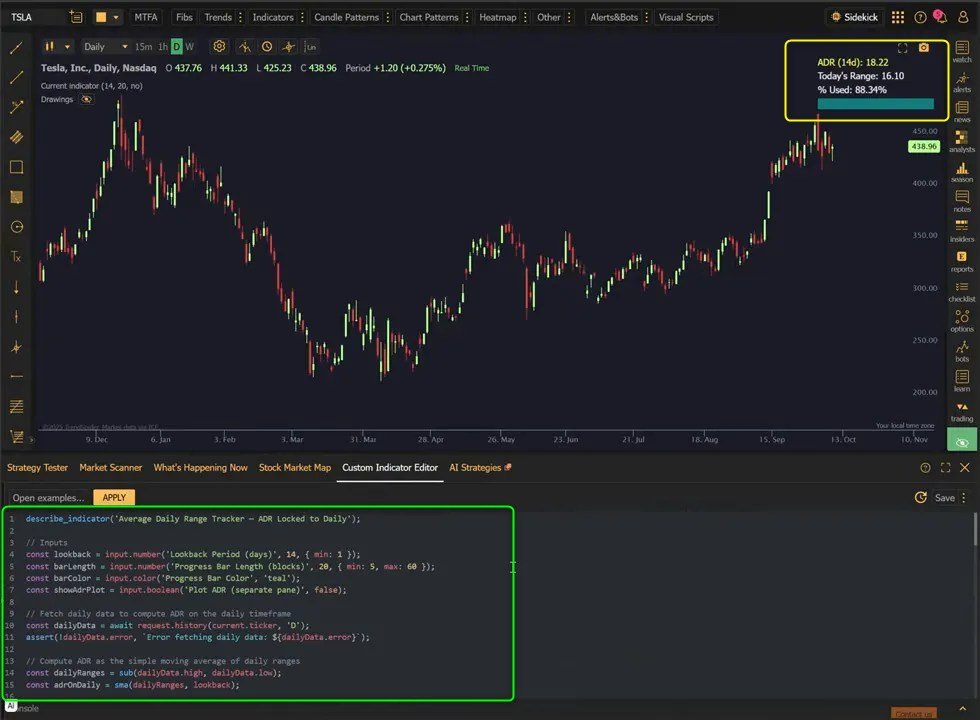
Look closely at areas like:
- Input parameters and default values
- Calculation formulas
- Conditional logic for signals or color changes
- Plot names and output structure
- Any smoothing, averaging, or lookback logic
If you are translating a simple overlay or oscillator, this review may be quick.
If the script is more complex, with multiple calculations or layered conditions, expect to spend a little more time validating the result. That is normal.
The real advantage is that you are reviewing and refining, rather than manually building the full translation from the ground up.
Step 6: Test the Indicator in TrendSpider
Once the JavaScript version looks correct, the next step is to test it inside TrendSpider.
This is where you confirm that the indicator behaves as expected on actual charts.
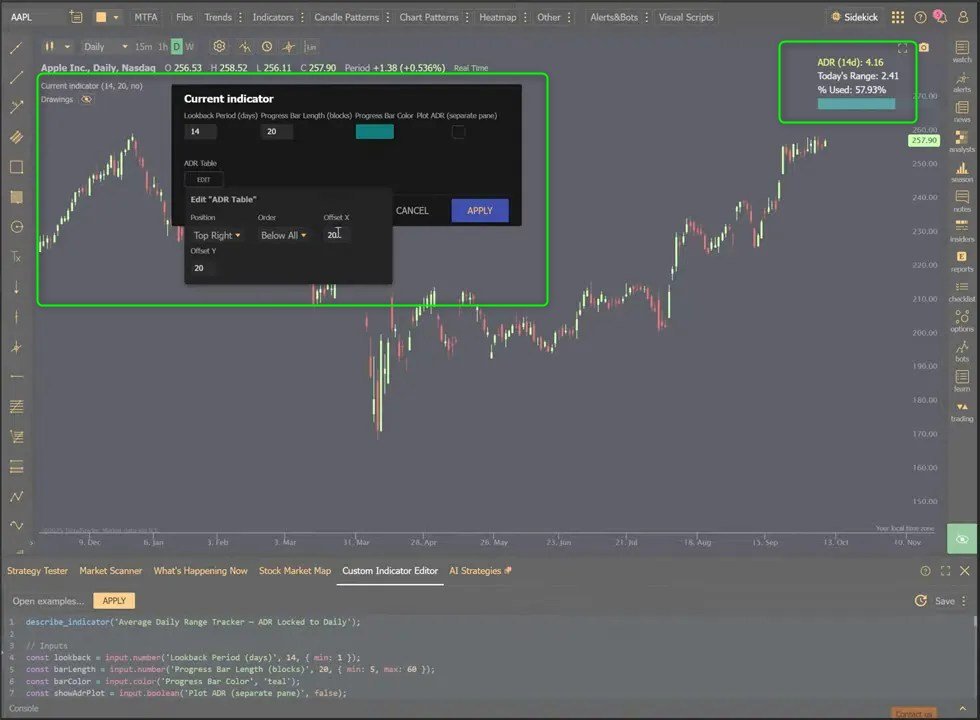
Testing is important because code that looks right on paper still needs to perform correctly in practice. You want to verify that:
- The indicator loads without errors
- Plots appear where expected
- Inputs behave properly when adjusted
- Signal conditions trigger correctly
- The chart output aligns with the underlying logic of the original script
If anything is off, the AI-generated version gives you a much better starting point for edits than a blank page would.
That is one of the biggest practical benefits of this workflow. It shortens the distance between idea and implementation.
Step 7: Refine and Save Your Custom Indicator
After testing, refine whatever needs adjustment and save the indicator for ongoing use.
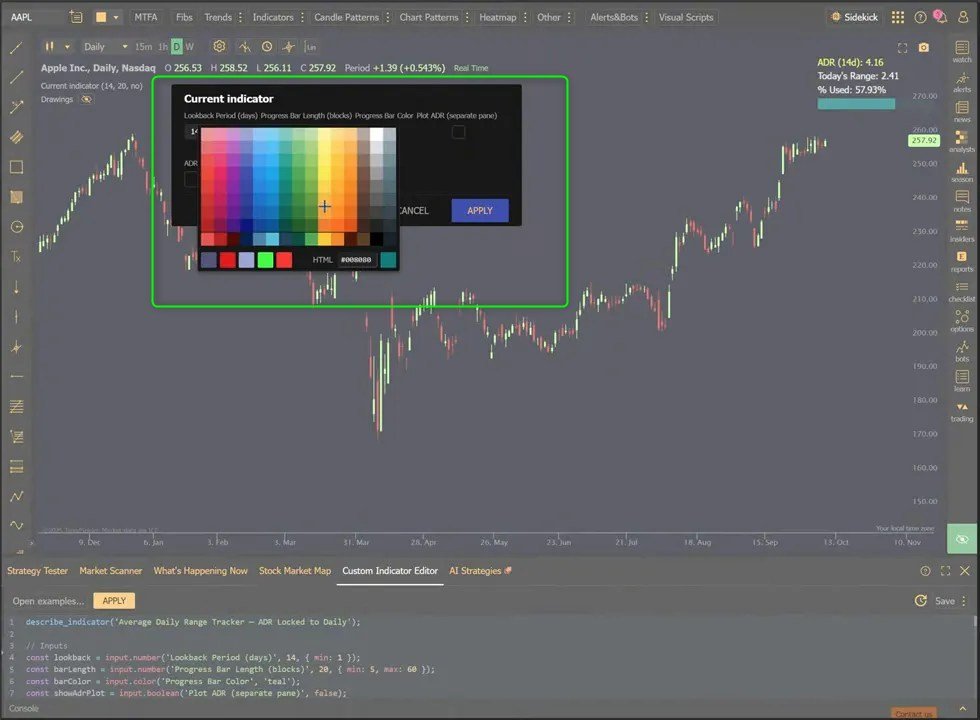
Depending on the script, refinement may be minimal. In other cases, you may want to improve naming, simplify parameters, or clean up any sections that are technically functional but not as readable as you would like.
At this stage, a few best practices help:
- Rename outputs clearly so they are easy to identify on charts.
- Organize inputs logically for easier adjustment later.
- Document your edits so you remember what changed from the original Pine Script version.
- Compare behavior visually if you are trying to preserve the original indicator as closely as possible.
Once saved, the translated script becomes part of your TrendSpider workflow, and that opens the door to reusing more of your custom indicator library inside a single platform.
Use This Workflow to Create Your Custom Indicators
Custom indicators are often where traders encode their edge. They capture logic that goes beyond standard built-in studies and allow a more personalized approach to market analysis.
If you already work with Pine Script and want to bring those ideas into TrendSpider, AI translation can make that process dramatically easier.
With TrendSpider’s AI, the custom indicator editor becomes more than just a place to write code. It becomes a bridge between existing Pine Script work and JavaScript-based TrendSpider indicators.
And because the process begins by simply pasting in existing Pine Script code, the barrier to trying it is low.
Final Thoughts
Converting Pine Script to JavaScript with TrendSpider’s AI is about reducing friction.If you have an indicator you already trust, you shouldn’t have to rebuild everything manually just to use it on another platform.
For anyone building custom tools, this is a strong shortcut without giving up control over the final result.
If you already have a collection of Pine Script code, this feature makes it much easier to bring that work into TrendSpider and keep your analysis where you need it.
Try TrendSpider AI: Convert Pine Script to JavaScript
Educational content only, not financial advice.Content may contain affiliate links.